

A good presentation is about more than creating attractive slides. You also need to deliver those slides confidently, move naturally around the room, and keep your audience focused on what you are saying. That is where the best wireless presentation clickers can make a real difference.
A wireless presentation clicker, also called a presentation remote or PowerPoint clicker, lets you advance slides, return to previous slides, and sometimes highlight important information without standing beside your laptop.
The right model depends on how and where you present. A student may only need simple slide controls, while a professional speaker may want a long wireless range, digital highlighting, rechargeable batteries, or advanced presentation controls.
In this guide, we’ll explain what to look for and explore some of the strongest options for different presentation needs.
What Is the Best Wireless Presentation Clickers?
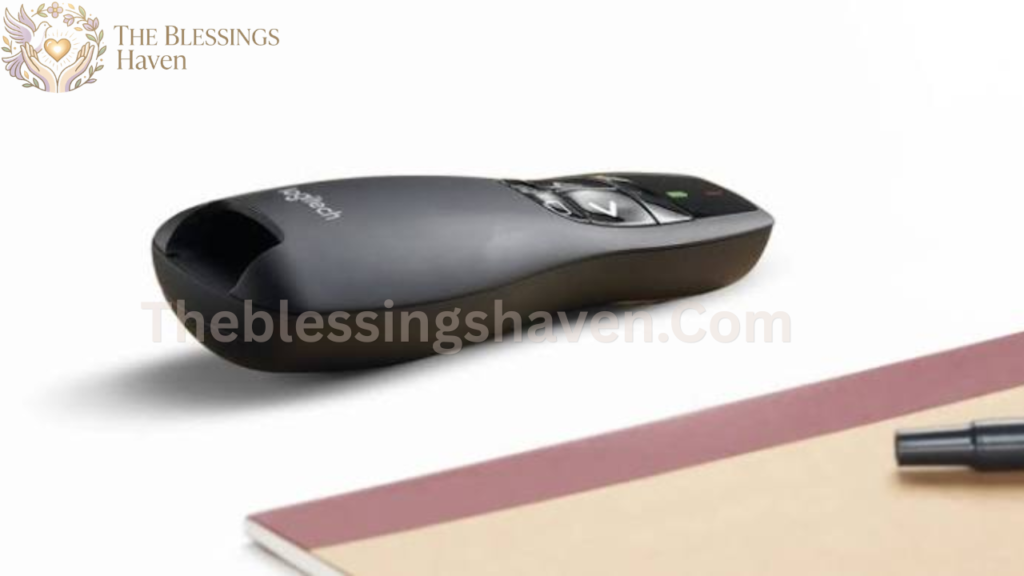
For most people, the Logitech R500s is an excellent all-around choice because it combines a simple three-button design with USB and Bluetooth connectivity, a red laser pointer, and a claimed operating range of up to 20 meters.
For presenters who want more advanced digital pointing features, the Logitech Spotlight is a stronger premium option. Logitech’s current presenter lineup also includes the R800 and R400, giving buyers several options depending on their budget and presentation style.
Our quick picks
| Category | Recommended option | Best for |
|---|---|---|
| Best overall | Logitech R500s | Everyday presentations |
| Best premium | Logitech Spotlight | Professional presenters |
| Best for large rooms | Long-range presenter with a highly visible pointer | Conferences and lecture halls |
| Best simple option | Logitech R400 | Students and occasional presenters |
| Best for timed presentations | Logitech R800 | Lectures and business presentations |
| Best for modern screens | Digital-pointer presenter | TVs, displays and hybrid presentations |
What Is a Wireless Presentation Clicker?
A wireless presentation clicker is a handheld remote that allows you to control presentation software from a distance.
Instead of sitting beside your laptop and clicking the mouse every time you want to change a slide, you can hold the remote and control the presentation while standing, walking, or speaking to your audience.
Basic models usually offer:
- Previous-slide control
- Next-slide control
- Laser pointer
- Wireless connectivity
More advanced models can add:
- Digital highlighting
- Screen magnification
- Timer controls
- Custom buttons
- Media controls
- Rechargeable batteries
- Haptic alerts
Most presentation remotes connect through either a small USB receiver or Bluetooth. Some devices support both, which provides additional flexibility.
1. Logitech R500s — Best Wireless Presentation Clicker Overall
The Logitech R500s is one of the easiest recommendations for everyday presentation use.
Its biggest advantage is simplicity. Logitech uses a three-button layout designed so presenters can navigate slides without constantly looking down at the remote. It supports both Bluetooth Low Energy and a USB receiver, while its operating range is rated at up to 20 meters (65 feet).
The R500s also includes a Class 1 red laser pointer for highlighting areas of a presentation. Logitech provides optional customization through its software, including button customization and battery monitoring.
Why choose the R500s?
- Simple controls
- USB and Bluetooth connectivity
- Up to 20-meter range
- Red laser pointer
- Comfortable grip
- Works with Windows and macOS
- Suitable for common presentation software
Best for: Teachers, students, business professionals, trainers, consultants, and everyday presenters.
If you don’t need sophisticated digital presentation effects, the R500s offers a strong balance between functionality and simplicity.
2. Logitech Spotlight — Best Premium Presentation Remote
If you give frequent professional presentations, a premium presenter can be worth considering.
The Logitech Spotlight is designed around digital presentation control rather than relying exclusively on a traditional laser dot. Logitech currently positions Spotlight as a digital-pointing presenter, while its newer Spotlight 2 sits above it in the company’s presenter range.
Digital highlighting can be particularly useful when presenting on modern TVs, LCD displays, or other screens where traditional laser pointers may not provide the visibility you want.
A premium presenter can also be valuable during hybrid presentations, training sessions, conferences, and professional demonstrations.
Best for: Professional speakers, trainers, executives, consultants, and frequent presenters.
Why choose a premium presenter?
The main reason isn’t simply having more buttons. It is having better control over how you direct audience attention.
For example, if a slide contains a complicated chart, being able to emphasize one section can be more useful than simply moving a red laser dot across the screen.
3. Logitech R800 — Best for Presentations With Time Limits
The Logitech R800 is another option in Logitech’s current presenter lineup. Logitech lists it with an LCD display designed for time tracking.
This makes it particularly interesting for presenters who have strict speaking limits.
Timing can be a major issue during:
- Business presentations
- Lectures
- Training sessions
- Conferences
- Sales pitches
- Academic presentations
When you’re concentrating on your audience and presentation content, checking the laptop clock can interrupt your delivery. A presenter with dedicated time information can make it easier to stay on schedule.
Best for: Speakers who regularly work within fixed presentation times.
4. Logitech R400 — Best Simple Presentation Clicker
Sometimes, more features aren’t necessarily better.
The Logitech R400 is positioned as a straightforward presenter with an intuitive layout. Logitech continues to list it in its current presenter lineup.
It can be a sensible choice for someone who wants basic presentation control without paying for advanced digital pointing features.
For occasional presentations, classroom use, or simple office meetings, a basic clicker may provide everything you actually need.
Best for: Students, teachers, occasional presenters, and users who prefer simplicity.
What Makes the Best Wireless Presentation Clicker?
Choosing a presentation remote shouldn’t be based on appearance alone. Several technical and practical features can affect your experience.
1. Wireless Range
Range matters because you don’t want to remain close to your laptop.
A small classroom may require only a modest range, while a conference hall can require significantly more freedom of movement.
For example, Logitech rates the R500s for up to 20 meters under specified conditions. Actual performance can vary depending on the environment and computing setup.
2. Connectivity
Look for a remote compatible with the devices you regularly use.
USB receivers are popular because they are generally straightforward to connect. Bluetooth can be more convenient when you don’t want to use a receiver.
A presenter supporting both USB and Bluetooth can be particularly useful if you switch between different computers.
3. Pointer Type
Presentation clickers generally fall into two categories: traditional laser pointers and digital pointers.
A laser pointer projects a physical dot onto the presentation surface. Digital pointing tools can highlight or magnify content directly on the displayed screen.
A traditional laser can be perfectly adequate for a projector, while digital pointing can be more versatile for modern displays.
4. Battery Life
Battery failure in the middle of a presentation is an avoidable problem.
Some clickers use replaceable AAA or other batteries, while premium models may use rechargeable batteries.
If you present frequently, consider not only battery life but also how easily you can recharge or replace the battery.
5. Button Layout
A presentation remote should be easy to operate without looking at it.
This is one reason simple layouts can be so effective. Logitech’s R500s, for example, uses three primary buttons intended to make navigation easy by touch.
6. Comfort
You may hold a clicker for 30 minutes, an hour, or even longer.
Look for:
- Comfortable grip
- Lightweight construction
- Clearly separated buttons
- Easy-to-reach controls
- Buttons that can be identified by touch
A comfortable remote allows you to focus on your audience rather than the device in your hand.
Best Wireless Presentation Clicker by Use Case
Different presenters have different priorities.
Best Presentation Clicker for Teachers
Teachers should prioritize simple controls, reliable connectivity, comfortable handling, and a useful pointing feature.
A model such as the R500s can work well because it provides straightforward slide navigation and a laser pointer.
Best Presentation Clicker for Students
Students usually don’t need an expensive professional remote. A basic, reliable clicker can handle classroom presentations without unnecessary features.
Focus on affordability, compatibility, and ease of use.
Best Presentation Clicker for Business
Business professionals may benefit from a more versatile remote with USB and Bluetooth connectivity.
If you regularly present to clients, executives, or teams, investing in a higher-quality device can be worthwhile.
Best Presentation Clicker for Large Rooms
Large conference rooms and lecture halls require more attention to range and pointer visibility.
A highly visible pointer and dependable wireless connection become more important as the distance between presenter, computer, and screen increases.
Best Presentation Clicker for Hybrid Presentations
Hybrid meetings introduce a different challenge because your audience may be watching through a video call rather than looking at a physical projection screen.
In this situation, a digital highlighting system can be more useful than relying entirely on a physical laser pointer.
Wireless Presentation Clicker Comparison
| Feature | Basic Clicker | Mid-Range Clicker | Premium Presenter |
|---|---|---|---|
| Slide navigation | Yes | Yes | Yes |
| Wireless connection | Yes | Yes | Yes |
| Laser pointer | Often | Usually | May use digital pointing |
| Bluetooth | Sometimes | Often | Often |
| USB receiver | Usually | Usually | Usually |
| Timer | Rare | Sometimes | Often |
| Digital highlighting | Rare | Model dependent | More common |
| Custom controls | Limited | Some | Advanced |
| Rechargeable battery | Model dependent | Model dependent | More common |
| Best for | Occasional use | Regular presenters | Professionals |
USB vs. Bluetooth Presentation Clickers
Both connection methods have advantages.
USB Receiver
A USB receiver is often simple and convenient. Plug it into the computer and the presenter can usually communicate with it directly.
Advantages:
- Simple setup
- Reliable for many presentation environments
- Useful on computers with compatible USB ports
Bluetooth
Bluetooth eliminates the need for a separate receiver when the computer supports the required connection.
Advantages:
- No dedicated receiver required
- Convenient for compatible laptops
- Useful when USB ports are limited
Which Is Better?
If you want maximum flexibility, a presenter that supports both USB and Bluetooth can be a smart choice. The R500s is an example of a current model offering both connection methods.
Laser Pointer vs. Digital Pointer
This is an increasingly important buying decision.
A laser pointer is simple and intuitive. You point at something on the screen and the audience follows the dot.
A digital pointer can provide more advanced on-screen emphasis, which may work better with modern displays and certain presentation environments.
If you mostly use a projector in a classroom, a laser may be enough.
If you regularly present on large TVs, modern displays, or hybrid meetings, digital pointing can be worth considering.
How to Choose the Right Presentation Clicker
Before buying, ask yourself five questions:
How often do I present?
Occasional presenters can usually choose a simpler model.
How large are my presentation rooms?
Larger spaces make wireless range more important.
What device do I use?
Check Windows, macOS, USB, and Bluetooth compatibility before buying.
Do I need a pointer?
If you frequently explain charts or diagrams, a pointer can be extremely useful.
Do I need advanced features?
Timers, digital highlighting, and customizable controls are useful for professional presenters but may be unnecessary for casual use.
Tips for Using a Wireless Presentation Clicker
Even the best presentation remote cannot replace preparation.
Before an important presentation:
- Connect the clicker to your laptop.
- Test every button.
- Check the wireless range.
- Confirm the presentation software responds correctly.
- Test the pointer on the actual screen if possible.
- Check the battery level.
- Keep spare batteries or a backup solution when appropriate.
- Practice changing slides without looking at the remote.
These simple steps can prevent technical problems from interrupting your presentation.
Frequently Asked Questions
What is the best wireless presentation clicker?
For general use, the Logitech R500s is a strong choice because it combines simple controls, USB and Bluetooth connectivity, a red laser pointer, and up to 20 meters of claimed operating range.
Do presentation clickers work with PowerPoint?
Most modern presentation clickers are designed to work with common presentation applications, but compatibility can vary. Always check the manufacturer’s supported operating systems and software before purchasing.
Is Bluetooth better than a USB presentation clicker?
Neither is universally better. Bluetooth can be convenient because it avoids a separate receiver, while USB receivers can provide straightforward plug-and-play connectivity. A clicker supporting both gives you greater flexibility.
How far can a wireless presentation clicker work?
Wireless range varies by model. For example, Logitech rates the R500s for up to 20 meters (65 feet), although actual range can vary depending on environmental and computing conditions.
Do I need a laser pointer on my presentation clicker?
Not necessarily. A laser is useful for physical screens and projectors, while digital pointing can be more suitable for modern displays and certain hybrid presentation setups.
Are expensive presentation clickers worth it?
They can be worthwhile for frequent presenters who need features such as digital highlighting, timers, advanced controls, rechargeable batteries, or greater flexibility. Occasional presenters may be better served by a simpler model.
Final Verdict on Best Wireless Presentation Clickers
The best wireless presentation clicker depends on your presentation environment rather than simply the number of features.
For most users, the Logitech R500s is a strong all-around option because it combines straightforward controls, a red laser pointer, USB and Bluetooth connectivity, and a claimed range of up to 20 meters.
If you want a more sophisticated presentation experience, Logitech’s Spotlight range is worth considering for digital pointing capabilities. For speakers who need time tracking, the R800 is another interesting choice, while the R400 is suitable for people who prefer a simple presentation remote.
Ultimately, prioritize reliable connectivity, sufficient range, comfortable controls, battery life, compatibility, and the right pointer technology. A good clicker should disappear into the background of your presentation and let your audience focus on your message.

Welcome to The Blessings Haven! Rathna is a passionate content creator sharing heartfelt blessings, inspirational quotes, prayers, and meaningful wishes, along with helpful technology articles, digital trends, and online guides.